
Product docs and API reference are now on Akamai TechDocs.
Search product docs.
Search for “” in product docs.
Search API reference.
Search for “” in API reference.
Search Results
results matching
results
No Results
Filters
AI Inference with App Platform for LKE
Traducciones al EspañolEstamos traduciendo nuestros guías y tutoriales al Español. Es posible que usted esté viendo una traducción generada automáticamente. Estamos trabajando con traductores profesionales para verificar las traducciones de nuestro sitio web. Este proyecto es un trabajo en curso.
LLMs (large language models) generate human-like text and perform language-based tasks by being trained on massive datasets. AI inference is the process to make predictions or decisions on new data outside of the training datasets. The LLM used in this deployment, Meta AI’s Llama 3, is an open-source, pre-trained LLM often used for tasks like responding to questions in multiple languages, coding, and advanced reasoning.
KServe is a Model Inference Framework for Kubernetes, built for highly-scalable use cases. KServe comes with multiple Model Serving Runtimes, including the Hugging Face serving runtime. The Hugging Face runtime supports the following machine learning (ML) tasks: text generation, Text2Text generation, token classification, sequence and text classification, and fill mask. KServe is integrated in App Platform for LKE, Akamai’s pre-built Kubernetes developer platform.
App Platform also integrates Istio and Knative, both of which are prerequisites for using KServe. App Platform automates the provisioning process of these applications.
This guide describes the steps required to: install KServe with App Platform, deploy the Meta Llama 3.1 8B model using the Hugging Face runtime server, and deploy a chatbot interface using Open WebUI. Once functional, use our Deploy a RAG Pipeline and Chatbot with App Platform for LKE guide to add and run a RAG pipeline and deploy an AI Agent that exposes an OpenAI compatible API.
If you prefer to manually install an LLM and RAG Pipeline on LKE rather than using Akamai App Platform, see our Deploy a Chatbot and RAG Pipeline for AI Inference on LKE guide.
Diagram


Components
Infrastructure
Linode GPUs (NVIDIA RTX 4000): Akamai has several GPU virtual machines available, including NVIDIA RTX 4000 (used in this tutorial) and Quadro RTX 6000. NVIDIA’s Ada Lovelace architecture in the RTX 4000 VMs are adept at many AI tasks, including inference and image generation.
Linode Kubernetes Engine (LKE): LKE is Akamai’s managed Kubernetes service, enabling you to deploy containerized applications without needing to build out and maintain your own Kubernetes cluster.
App Platform for LKE: A Kubernetes-based platform that combines developer and operations-centric tools, automation, self-service, and management of containerized application workloads. App Platform streamlines the application lifecycle from development to delivery and connects numerous CNCF (Cloud Native Computing Foundation) technologies in a single environment, allowing you to construct a bespoke Kubernetes architecture.
Software
Open WebUI: A self-hosted AI chatbot application that’s compatible with LLMs like Llama 3 and includes a built-in inference engine for RAG (Retrieval-Augmented Generation) solutions. Users interact with this interface to query the LLM.
Hugging Face: A data science platform and open-source library of data sets and pre-trained AI models. A Hugging Face account and access key is required to access the Llama 3 large language model (LLM) used in this deployment.
meta-llama/Llama-3.1-8B-Instruct LLM: The meta-llama/Llama-3.1-8B-Instruct model is used as the foundational LLM in this guide. You must review and agree to the licensing agreement before deploying.
KServe: Serves machine learning models. This tutorial installs the Llama 3 LLM to KServe, which then serves it to other applications, such as the chatbot UI.
Istio: An open source service mesh used for securing, connecting, and monitoring microservices.
Knative: Used for deploying and managing serverless workloads on the Kubernetes platform.
Prerequisites
A Cloud Manager account is required to use Akamai’s cloud computing services, including LKE.
A Hugging Face account is used for pulling Meta AI’s Llama 3 model.
Access granted to Meta AI’s Llama 3 model is required. To request access, navigate to Hugging Face’s Llama 3-8B Instruct LLM link, read and accept the license agreement, and submit your information.
Set Up Infrastructure
Provision an LKE Cluster
We recommend provisioning an LKE cluster with App Platform enabled and the following minimum requirements:
- 3 8GB Dedicated CPUs with autoscaling turned on.
- A second node pool consisting of at least 2 RTX4000 Ada x1 Medium GPU plans.
Once your LKE cluster is provisioned and the App Platform portal is available, complete the following steps to continue setting up your infrastructure.
Sign into the App Platform web UI using the platform-admin account, or another account that uses the platform-admin role. Instructions for signing into App Platform for the first time can be found in our Getting Started with Akamai App Platform guide.
Enable Knative an KServe
Select view > platform in the top bar.
Select Apps in the left menu.
Enable the Knative and KServe apps by hovering over each app icon and clicking the power on button. It may take a few minutes for the apps to enable.
Enabled apps move up and appear in color towards the top of the available app list.


Create Teams
Teams are isolated tenants on the platform to support development and DevOps teams, projects or even DTAP. A team gets access to the App Platform portal, including access to self-service features and all shared apps available on the platform.
For this guide you will need to create 2 teams. One team that offers access to LLMs as a shared service and one team that consumes the LLMs.
First, create a team to run the LLMs:
Select view > platform.
Select Teams in the left menu.
Click Create Team.
Provide a Name for the team. This guide uses the team name
models.Under Resource Quota, change the Compute Resource Quota to 50 Cores and 64 Gi
Under Network Policies, disable Egress Control and Ingress Control.
See Appendix 1 and 2 to learn what to do when Egress Control and Ingress Control should be enabled because of compliance.
Click Create Team.
Now create a team to run the apps that are to consume the LLMs:
Click Create Team.
Provide a Name for the team. This guide uses the team name
demo.Under Network Policies, disable Egress Control and Ingress Control.
Click Create Team.
Install the NVIDIA GPU Operator
The NVIDIA GPU Operator automates the management of NVIDIA software components needed for provisioning the GPUs, including drivers, the Kubernetes device plugin for GPUs, the NVIDIA Container Toolkit, and others.
Select view > team and team > admin in the top bar.
Select Shell in the left menu. Wait for the shell session to load.


In the provided shell session, install the NVIDIA GPU operator using Helm:
helm repo add nvidia https://helm.ngc.nvidia.com/nvidia
helm repo update
helm install --wait --generate-name -n gpu-operator --create-namespace nvidia/gpu-operator --version=v24.9.1

Add the open-webui Helm Chart to the catalog
Click on Catalog in the left menu.
Select Add Helm Chart.
Under Git Repository URL, add the URL to the
open-webuiHelm chart:https://github.com/open-webui/helm-charts/blob/open-webui-5.20.0/charts/open-webui/Chart.yamlClick Get Details to populate the
open-webuiHelm chart details.Leave the Allow teams to use this chart option selected.
Click Add Chart.
Add the hf-meta-llama-3-1-8b-instruct Helm Chart to the catalog
Click on Catalog in the left menu.
Select Add Helm Chart.
Under Git Repository URL, add the URL to the
hf-meta-llama-3-1-8b-instructHelm chart:https://github.com/linode/apl-examples/blob/main/inference/kserve/hf-meta-llama-3-1-8b-instruct/Chart.yamlClick Get Details to populate the Helm chart details.
Uncheck the Allow teams to use this chart option. In the next step, configure the RBAC of the catalog to make this Helm chart available to the
modelsteam.Click Add Chart.
Now, configure the RBAC of the catalog:
Select view > platform.
Select App in the left menu.
Click on the
Giteaapp.In the list of repositories, click on
otomi/charts.At the bottom, click on the file
rbac.yaml.Change the RBAC for the
hf-meta-llama-3.1-8b-instructHelm chart as shown below:hf-meta-llama-3.1-8b-instruct: - team-models
Create a Hugging Face Access Token
Navigate to the Hugging Face Access Tokens page.
Click Create new token.
Under Token type, select “Write” access.
Enter a name for your token, and click Create token.
Save your access token information.
See the Hugging Face user documentation on User access tokens for additional information.
Request Access to Llama 3
If you haven’t done it already, request access to the Llama 3 LLM model. To do this, go to Hugging Face’s Llama 3-8B Instruct LLM link, read and agree the license agreement, and submit your information. You must wait for access to be granted in order to proceed.
Deploy the Llama Model
Create a Sealed Secret
Sealed Secrets are encrypted Kubernetes secrets stored in the Values repository. When a sealed secret is created in the console, the Kubernetes secret appears in the team’s namespace.
Select view > team and team > models in the top bar.
Select Sealed Secrets from the menu.
Click Create SealedSecret.
Add the name
hf-secret.Select type kubernetes.io/opaque from the type dropdown menu.
Add Key:
HF_TOKEN.Add your Hugging Face access token in the Value field: HUGGING_FACE_TOKEN
Click Submit. The sealed secret may take a few minutes to become ready.
Create a Workload to Deploy the Model
Select view > team and team > models in the top bar.
Select Catalog from the menu.
Select the hf-meta-llama-3-1-8b-instruct chart.
Click on Values.
Provide a name for the workload. This guide uses the workload name
llama-3-1-8b.Use the default values and click Submit.
Check the Status of Your Workload
It may take a few minutes for the llama-3-1-8b workload to become ready. To check the status of the workload build, open a shell session by selecting Shell in the left menu, and use the following command to check the status of the pods with
kubectl:kubectl get pods -n team-modelsNAME READY STATUS RESTARTS AGE llama-3-1-8b-predictor-00001-deployment-68d58ccfb4-jg6rw 0/3 Pending 0 22s tekton-dashboard-5f57787b8c-gswc2 2/2 Running 0 1h
Wait for the workload to be ready before proceeding.
Deploy and Expose the AI Interface
Create a Workload to Deploy the AI Interface
Select view > team and team > demo in the top bar.
Select Catalog from the menu.
Select the open-webui chart.
Click on Values.
Provide a name for the workload. This guide uses the workload name
llama3-ui.Add the following values and change the
nameOverridevalue to the name of your workload,llama3-ui:1 2 3 4 5 6 7 8 9 10 11 12 13# Change the nameOverride to match the name of the Workload nameOverride: llama3-ui ollama: enabled: "false" pipelines: enabled: "false" replicaCount: "1" persistence: enabled: "false" openaiBaseApiUrl: http://llama-3-1-8b.team-models.svc.cluster.local/openai/v1 extraEnvVars: - name: "WEBUI_AUTH" value: "false"
Click Submit.
Expose the AI Interface
Select Services from the menu.
Click Create Service.
In the Service Name dropdown menu, select the
llama3-uiservice.Click Create Service.
Access the Open Web User Interface
Once the AI user interface is ready, you should be able to access the web UI for the Open WebUI chatbot.
Click on Services in the menu.
In the list of available services, click on the URL for the
llama3-uiservice. This should bring you to the chatbot user interface.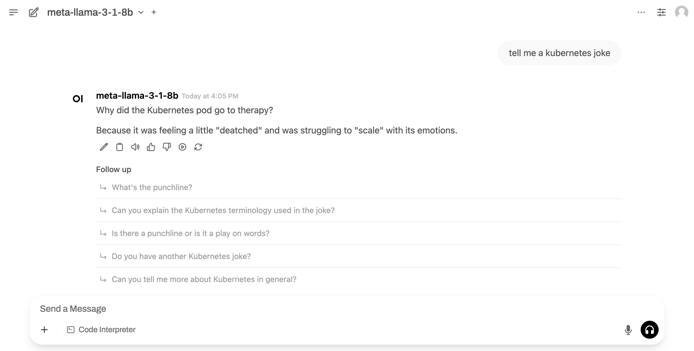


Next Steps
See our Deploy a RAG Pipeline and Chatbot with App Platform for LKE guide to expand on the architecture built in this guide. This tutorial deploys a RAG (Retrieval-Augmented Generation) pipeline that indexes a custom data set and attaches relevant data as context when users send the LLM queries.
appendix 1: Ingress control
When we created the teams demo and models, we turned off the Ingress Control. Ingress Control controls internal access to pods. When Ingress Control is enabled, pods in the team namespace are not accessible to other pods (in the same team namespace or in other team namespaces). For the simplicity of this guide, Ingress Control was turned off. If you don’t want to disable Ingress Control for all the workloads in a team, then you can turn Ingress Control on and create Inbound Rules in the team’s network policies. Follow these steps to create inbound policies to control access to the models hosted in the team models:
Select view > team and team > models in the top bar.
Select Network Policies in the left menu.
Click Create Inbound Rule*
Add a name for the rule (like model-access)
Under Sources, select the workload (in this case the
llama3-uiworkload) and select a pod label.Under Target, select the workload (in this case the
llama-3-1-8bworkload) and select a pod label.Click Create Inbound Rule
Note that in some cases, the Target pod needs to be restarted if it already had accepted connections before the inbound rule was created.
appendix 2: Egress control
When we created the teams demo and models, we turned off the Egress Control. Egress Control is implemented using Istio Service Entries and Istio sidecar injection is enabled by default. Egress Control controls pod access to public URLs. Because the Hugging Face models need to be downloaded from an external repository and open-webui installs multiple binaries from external sources, both the LLM pod and open-webui need to have access to multiple public URLs. For the simplicity of this guide we turned the Egress Control off. If you don’t want to disable Egress Control for all the workloads in a team, then you can turn Egress Control on and create Outbound Rules in the team’s network policies or turn of the sidecar injection for a specific workloads (pods). There are several ways to do this:
Add the label
sidecar.istio.io/inject: "false"to the workload using the Chart ValuesEnable Kyverno and create a Kyverno Policy that mutates the a pod so that it has the
sidecar.istio.io/inject: "false"label.
The open-webui Helm chart used in this guide does not support adding additional labels to pods. The following instructions and example show how to use Kyverno to mutate the open-webui pods and add the sidecar.istio.io/inject: "false" label.
Select view > platform in the top bar.
Select Apps in the left menu.
In the Apps section, enable the Kyverno app.
In the Apps section, select the Gitea app.
In Gitea, navigate to the
team-demo-argocdrepository.Click the Add File dropdown, and select New File. Create a file named
open-webui-policy.yamlwith the following contents:1 2 3 4 5 6 7 8 9 10 11 12 13 14 15 16 17 18 19 20 21 22 23 24 25 26apiVersion: kyverno.io/v1 kind: Policy metadata: name: disable-sidecar-injection annotations: policies.kyverno.io/title: Disable Istio sidecar injection spec: rules: - name: disable-sidecar-injection match: any: - resources: kinds: - StatefulSet - Deployment selector: matchLabels: ## change the value to match the name of the Workload app.kubernetes.io/instance: "llama3-ui" mutate: patchStrategicMerge: spec: template: metadata: labels: sidecar.istio.io/inject: "false"
Optionally add a title and any notes to the change history. Then, click Commit Changes.
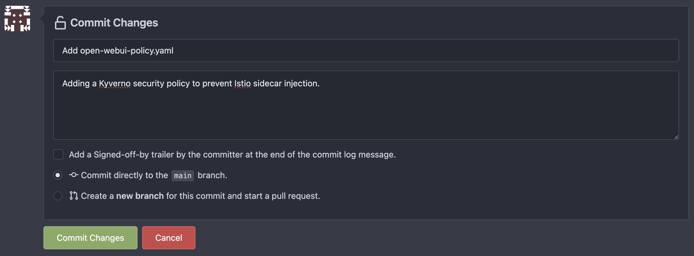
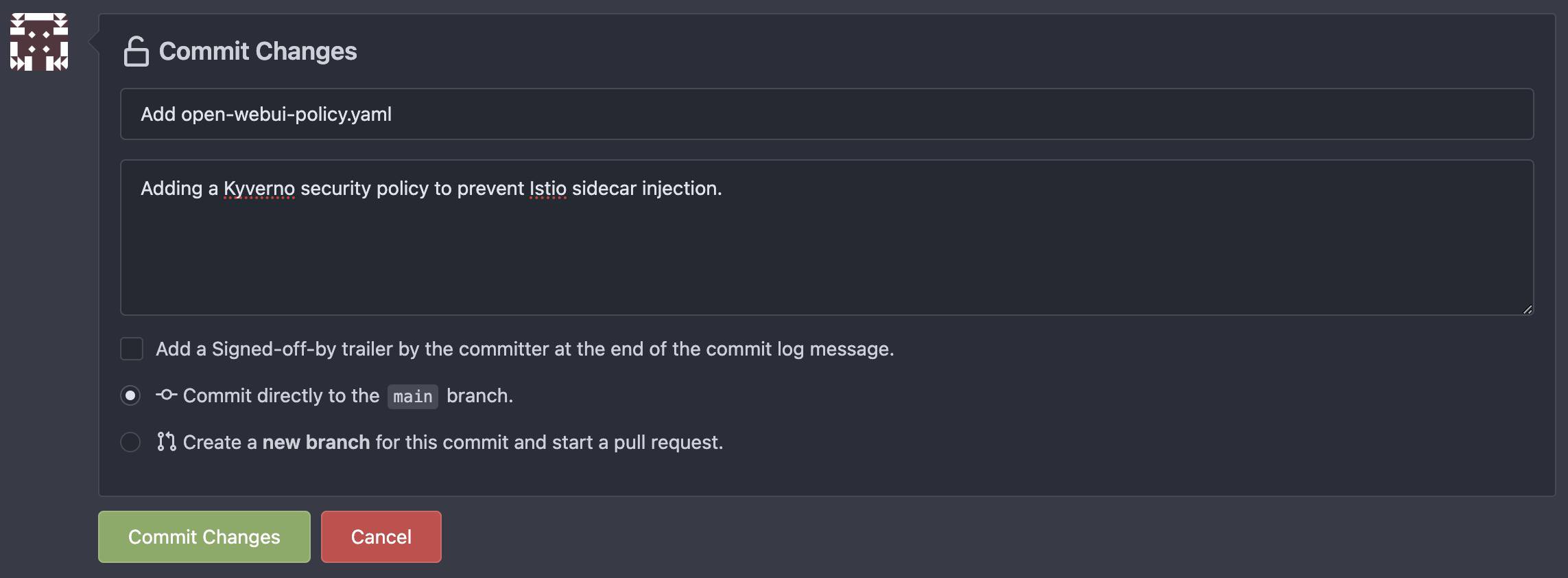
Check to see if the policy has been created in Argo CD:
Go to Apps and open the Argocd application.
Using the search feature, go to the
team-demoapplication to see if the policy has been created. If it isn’t there yet, view theteam-demoapplication in the list of Applications, and click Refresh if needed.

More Information
You may wish to consult the following resources for additional information on this topic. While these are provided in the hope that they will be useful, please note that we cannot vouch for the accuracy or timeliness of externally hosted materials.
This page was originally published on
