
Product docs and API reference are now on Akamai TechDocs.
Search product docs.
Search for “” in product docs.
Search API reference.
Search for “” in API reference.
Search Results
results matching
results
No Results
Filters
Implement RAG (Retrieval-Augmented Generation) with App Platform for LKE
Traducciones al EspañolEstamos traduciendo nuestros guías y tutoriales al Español. Es posible que usted esté viendo una traducción generada automáticamente. Estamos trabajando con traductores profesionales para verificar las traducciones de nuestro sitio web. Este proyecto es un trabajo en curso.
This guide extends the LLM (Large Language Model) inference architecture built in our Deploy an LLM for AI Inference with App Platform for LKE guide by deploying a RAG (Retrieval-Augmented Generation) pipeline that indexes a custom data set. RAG is a particular method of context augmentation that attaches relevant data as context when users send queries to an LLM.
Follow the steps in this tutorial to enable Kubeflow Pipelines and deploy a RAG pipeline using App Platform for LKE. The data set you use may vary depending on your use case. For example purposes, this guide uses a sample data set from Akamai Techdocs that includes documentation about all Akamai Cloud services.
If you prefer a manual installation rather than one using App Platform for LKE, see our Deploy a Chatbot and RAG Pipeline for AI Inference on LKE guide.
Diagram

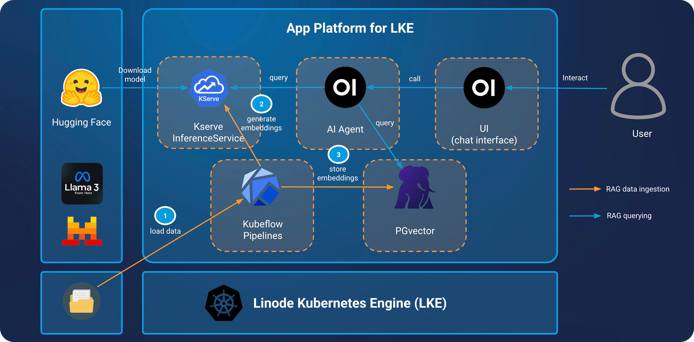

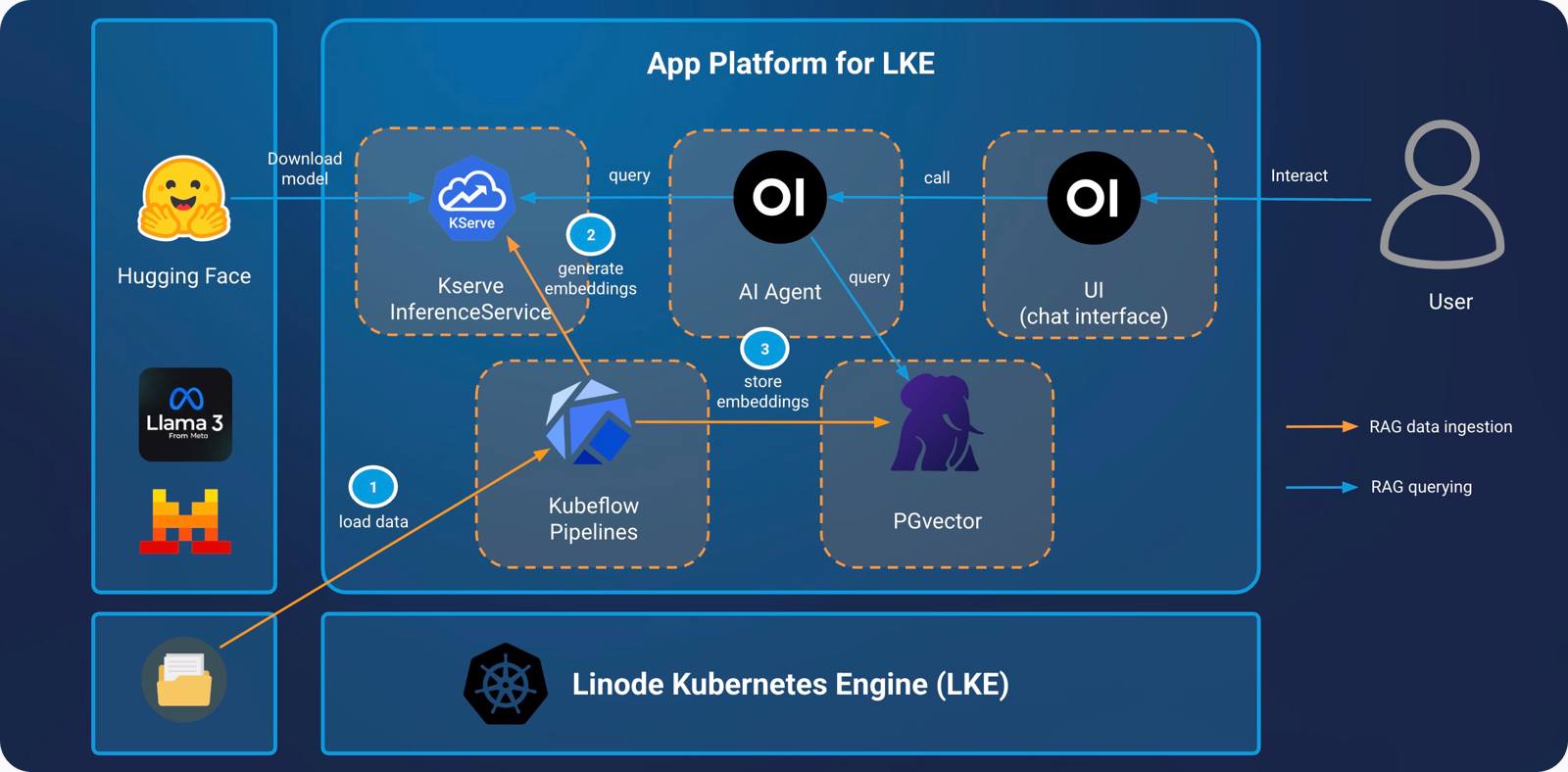
Components
Infrastructure
Linode GPUs (NVIDIA RTX 4000): Akamai has several high-performance GPU virtual machines available, including NVIDIA RTX 4000 (used in this tutorial) and Quadro RTX 6000. NVIDIA’s Ada Lovelace architecture in the RTX 4000 VMs are adept at many AI tasks, including inference and image generation.
Linode Kubernetes Engine (LKE): LKE is Akamai’s managed Kubernetes service, enabling you to deploy containerized applications without needing to build out and maintain your own Kubernetes cluster.
App Platform for LKE: A Kubernetes-based platform that combines developer and operations-centric tools, automation, self-service, and management of containerized application workloads. App Platform for LKE streamlines the application lifecycle from development to delivery and connects numerous CNCF (Cloud Native Computing Foundation) technologies in a single environment, allowing you to construct a bespoke Kubernetes architecture.
Additional Software
Open WebUI Pipelines: A self-hosted UI-agnostic OpenAI API plugin framework that brings modular, customizable workflows to any UI client supporting OpenAI API specs.
PGvector: Vector similarity search for Postgres. This tutorial uses a Postgres database with a
vectorextension to store embeddings generated by LlamaIndex and make them available to queries sent to the Llama 3.1 8B LLM.KServe: Serves machine learning models. The architecture in this guide uses the Llama 3 LLM deployed using the Hugging Face runtime server with KServe, which then serves it to other applications, including the chatbot UI.
intfloat/e5-mistral-7b-instruct LLM: The intfloat/e5-mistral-7b-instruct model is used as the embedding LLM in this guide.
Kubeflow Pipelines: Used to deploy pipelines, reusable machine learning workflows built using the Kubeflow Pipelines SDK. In this tutorial, a pipeline is used to run a pipeline to process the dataset and store embeddings in the PGvector database.
Prerequisites
Complete the deployment in the Deploy an LLM for AI Inference with App Platform for LKE guide. Your LKE cluster should include the following minimum hardware requirements:
3 8GB Dedicated CPUs with autoscaling turned on
A second node pool consisting of at least 2 RTX4000 Ada x1 Medium GPU plans
Python3 and the venv Python module installed on your local machine
Object Storage configured. Make sure to configure Object Storage as described here before Kubeflow Pipelines is enabled.
Set Up Infrastructure
Before continuing, sign into the App Platform web console as platform-admin or any other account that uses the platform-admin role.
Add the hf-e5-mistral-7b-instruct Helm Chart to the Catalog
Click on Catalog in the left menu.
Select Add Helm Chart.
Under Git Repository URL, add the URL to the
hf-e5-mistral-7b-instructHelm chart:https://github.com/linode/apl-examples/blob/main/inference/kserve/hf-e5-mistral-7b-instruct/Chart.yamlClick Get Details to populate the Helm chart details.
Uncheck the Allow teams to use this chart option. In the next step, you’ll configure the RBAC of the catalog to make this Helm chart available for the team
modelsto use.Click Add Chart.
Now configure the RBAC of the catalog:
Select view > platform.
Select App in the left menu.
Click on the Gitea app.
In the list of repositories, click on
otomi/charts.At the bottom, click on the file
rbac.yaml.Change the RBAC for the
hf-e5-mistral-7b-instructHelm chart as shown below:hf-e5-mistral-7b-instruct: - team-models
Create a Workload to Deploy the Model
Select view > team and team > models in the top bar.
Select Catalog from the menu.
Select the hf-e5-mistral-7b-instruct chart.
Click on Values.
Provide a name for the workload. This guide uses the workload name
mistral-7b.Use the default values and click Submit.
Create a Workload to deploy a PGvector cluster
Select view > team and team > demo in the top bar.
Select Catalog from the menu.
Select the pgvector-cluster chart.
Click on Values.
Provide a name for the workload. This guide uses the workload name
pgvector.Use the default values and click Submit.
Note that the pgvector-cluster chart also creates a database in the PGvector cluster with the name app.
Set Up Kubeflow Pipelines
Enable Kubeflow Pipelines
Select view > platform in the top bar.
Select Apps in the left menu.
Enable the Kubeflow Pipelines app by hovering over the app icon and clicking the power on button. It may take a few minutes for the apps to enable.
Generate the Pipeline YAML File
Follow the steps below to create a Kubeflow pipeline file. This YAML file describes each step of the pipeline workflow.
On your local machine, create a virtual environment for Python:
python3 -m venv .
source bin/activate
Install the Kubeflow Pipelines package in the virtual environment:
pip install kfpCreate a file named
doc-ingest-pipeline.pywith the following contents.This script configures the pipeline that downloads the Markdown data set to be ingested, reads the content using LlamaIndex, generates embeddings of the content, and stores the embeddings in the PGvector database.
 1
 2
 3
 4
 5
 6
 7
 8
 9
10
11
12
13
14
15
16
17
18
19
20
21
22
23
24
25
26
27
28
29
30
31
32
33
34
35
36
37
38
39
40
41
42
43
44
45
46
47
48
49
50
51
52
53
54
55
56
57
58
59
60
61
62
63
64
65
66
67
68
69
70
71
72
73
74
75
from kfp import dsl @dsl.component( base_image='nvcr.io/nvidia/ai-workbench/python-cuda117:1.0.3', packages_to_install=['psycopg2-binary', 'llama-index', 'llama-index-vector-stores-postgres', 'llama-index-embeddings-openai-like', 'llama-index-llms-openai-like', 'kubernetes'] ) def doc_ingest_component(url: str, table_name: str) -> None: print(">>> doc_ingest_component") from urllib.request import urlopen from io import BytesIO from zipfile import ZipFile http_response = urlopen(url) zipfile = ZipFile(BytesIO(http_response.read())) zipfile.extractall(path='./md_docs') from llama_index.core import SimpleDirectoryReader # load documents documents = SimpleDirectoryReader("./md_docs/", recursive=True, required_exts=[".md"]).load_data() from llama_index.embeddings.openai_like import OpenAILikeEmbedding from llama_index.core import Settings Settings.embed_model = OpenAILikeEmbedding( model_name="mistral-7b-instruct", api_base="http://mistral-7b.team-models.svc.cluster.local/openai/v1", api_key="EMPTY", embed_batch_size=50, max_retries=3, timeout=180.0 ) from llama_index.core import VectorStoreIndex, StorageContext from llama_index.vector_stores.postgres import PGVectorStore import base64 from kubernetes import client, config def get_secret_credentials(): try: config.load_incluster_config() # For in-cluster access v1 = client.CoreV1Api() secret = v1.read_namespaced_secret(name="pgvector-app", namespace="team-demo") password = base64.b64decode(secret.data['password']).decode('utf-8') username = base64.b64decode(secret.data['username']).decode('utf-8') return username, password except Exception as e: print(f"Error getting secret: {e}") return 'app', 'changeme' pg_user, pg_password = get_secret_credentials() vector_store = PGVectorStore.from_params( database="app", host="pgvector-rw.team-demo.svc.cluster.local", port=5432, user=pg_user, password=pg_password, table_name=table_name, embed_dim=4096 ) storage_context = StorageContext.from_defaults(vector_store=vector_store) index = VectorStoreIndex.from_documents( documents, storage_context=storage_context ) @dsl.pipeline def doc_ingest_pipeline(url: str, table_name: str) -> None: comp = doc_ingest_component(url=url, table_name=table_name) from kfp import compiler compiler.Compiler().compile(doc_ingest_pipeline, 'pipeline.yaml')
Run the script to generate a pipeline YAML file called
pipeline.yaml:python3 doc-ingest-pipeline.pyThis file is uploaded to Kubeflow in the following section.
Exit the Python virtual environment:
deactivate
Run the Pipeline Workflow
Select view > team and team > demo in the top bar.
Select Apps.
Click on the
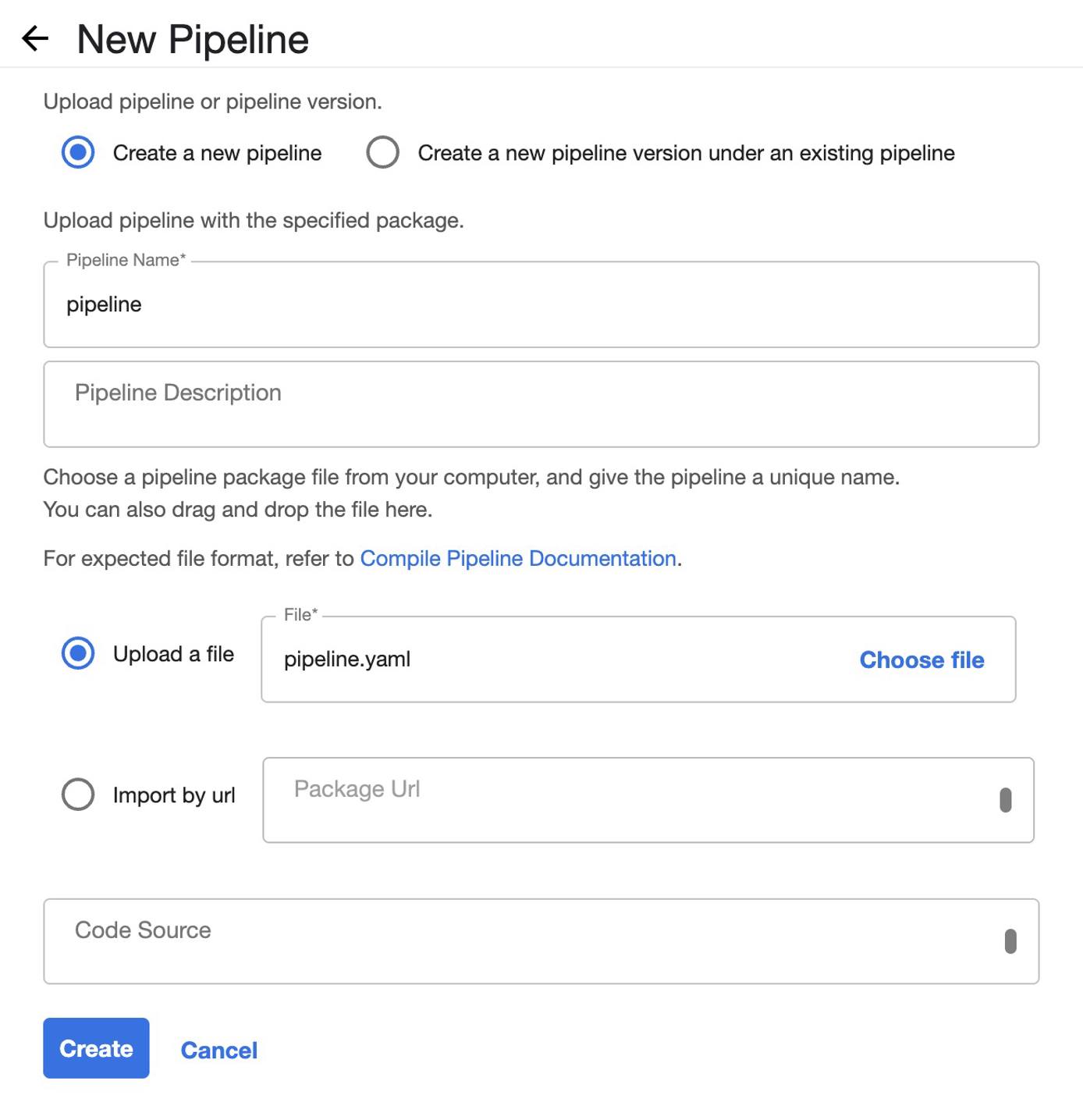
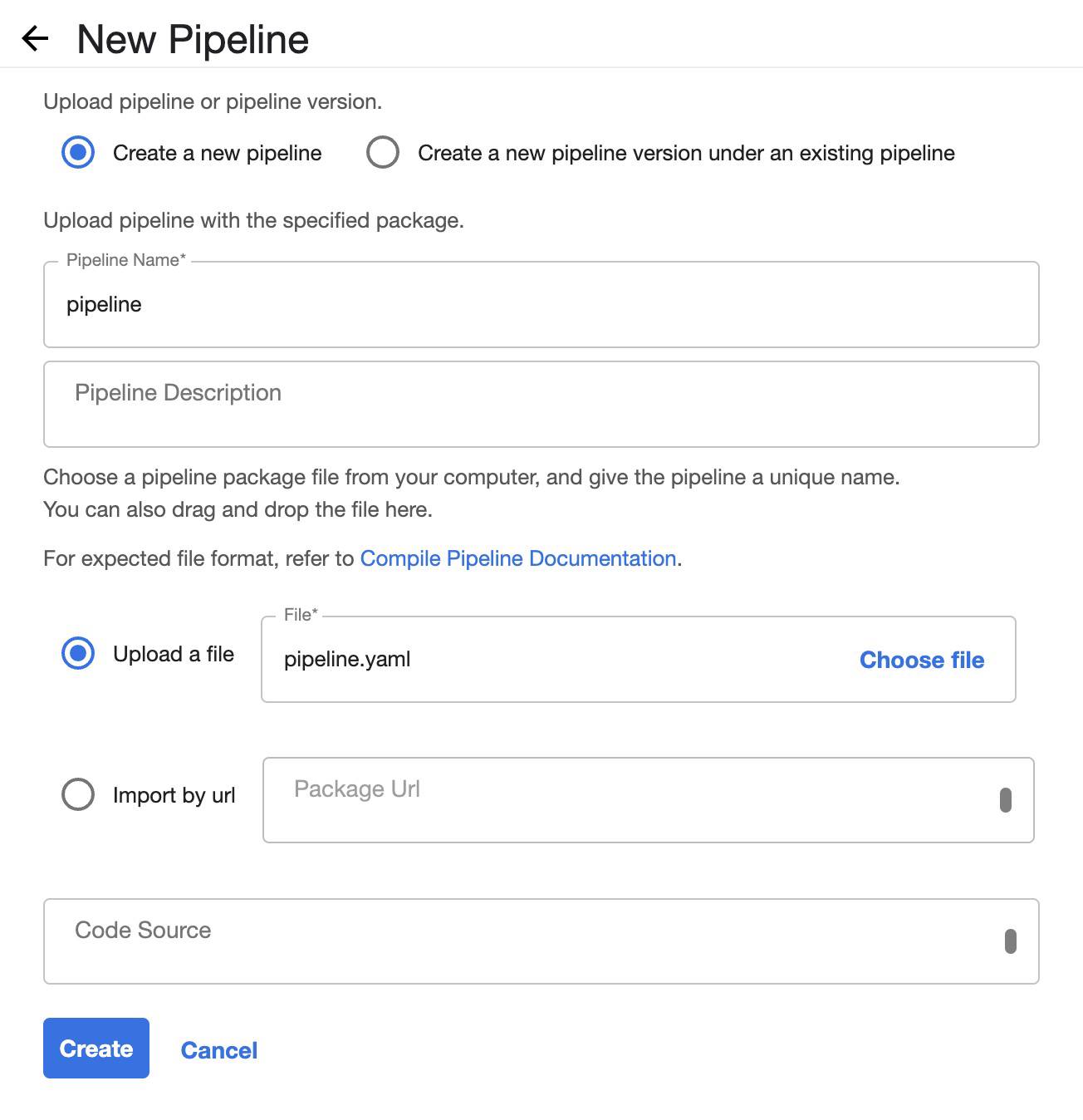
kubeflow-pipelinesapp.The UI opens the Pipelines section. Click Upload pipeline.
Under Upload a file, select the
pipeline.yamlfile created in the previous section, and click Create.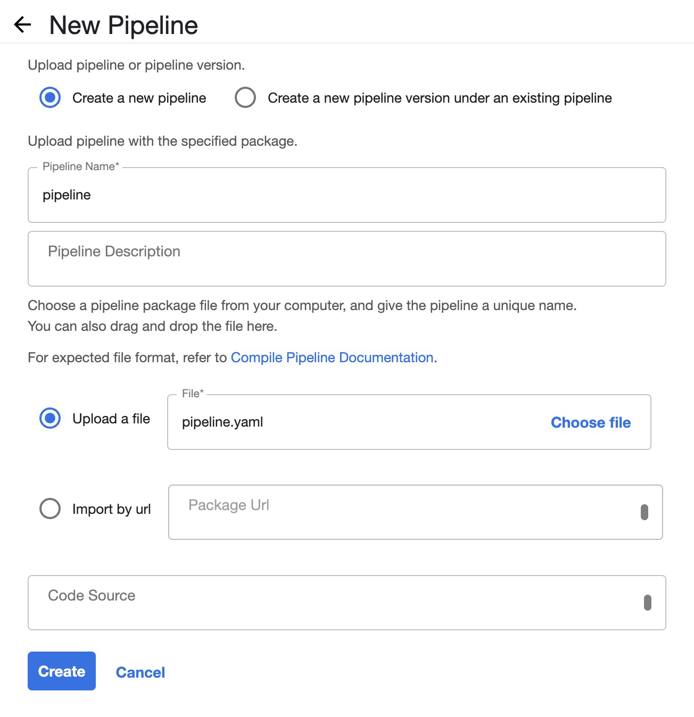
Select Runs from the left menu, and click Create run.
Under Pipeline, choose the pipeline
pipeline.yamlyou just created.For Run Type choose One-off.
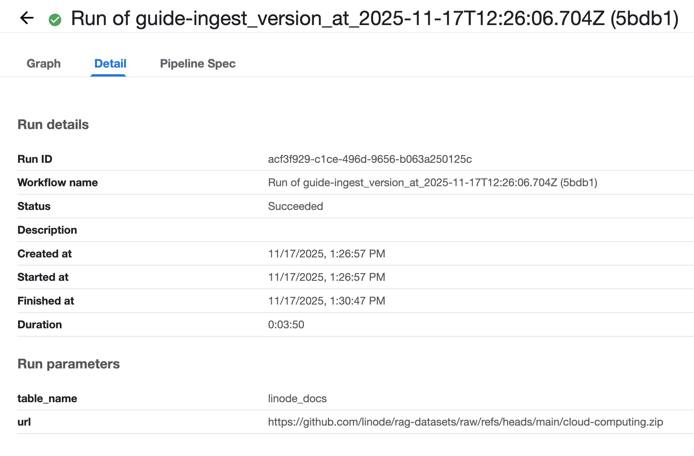
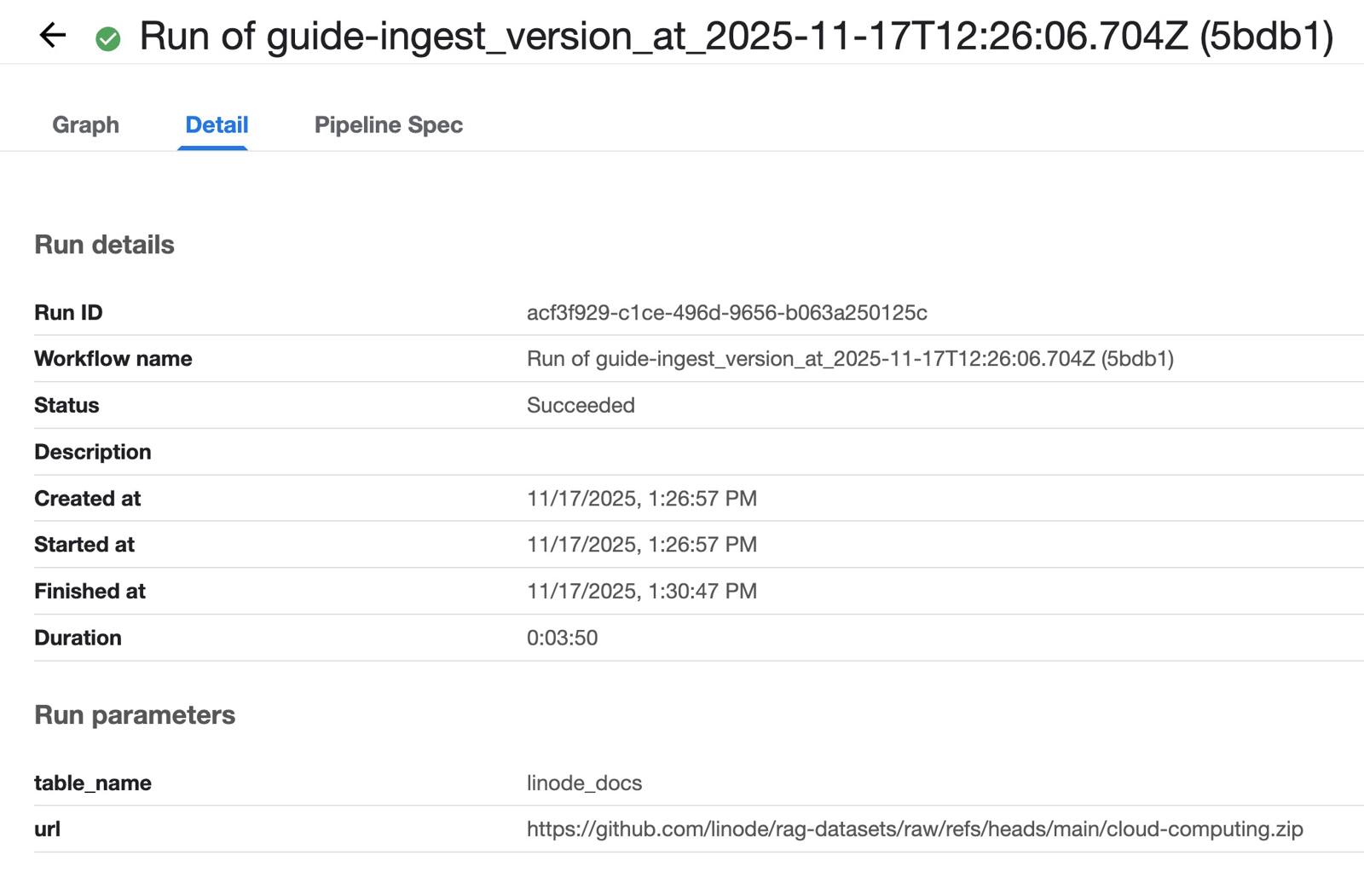
Use
linode_docsfor the table_nameTo use the sample Linode Docs data set in this guide, use the following GitHub URL for url-string:
 ```command
 https://github.com/linode/rag-datasets/raw/refs/heads/main/cloud-computing.zip
 ```
Click Start to run the pipeline. When completed, the run is shown with a green checkmark to the left of the run title.

Deploy the AI Agent
The next step is to use Open WebUI pipelines configured with an agent pipeline. This connects the data generated in the Kubernetes Pipeline with the LLM deployed in KServe. It also exposes an OpenAI API endpoint to allow for a connection with the chatbot.
The Open WebUI pipeline uses the PGvector database to load context related to the search. The pipeline sends it, and the query, to the Llama LLM instance within KServe. The LLM then sends back a response to the chatbot, and your browser displays an answer informed by the custom data set.
Create a configmap with the Agent Pipeline Files
The Agent pipeline files in this section are not related to the Kubeflow pipeline created in the previous section. Instead, the Agent pipeline instructs the agent how to interact with each component created thus far, including the PGvector data store, the embedding model and the Llama (foundation) model.
Select view > team and team > demo in the top bar.
Navigate to the Apps section, and click on Gitea.
In Gitea, navigate to the
team-demo-argocdrepository on the right.Click the Add File dropdown, and select New File. Create a file with the name
my-agent-pipeline-files.yamlwith the following contents:1 2 3 4 5 6 7 8 9 10 11 12 13 14 15 16 17 18 19 20 21 22 23 24 25 26 27 28 29 30 31 32 33 34 35 36 37 38 39 40 41 42 43 44 45 46 47 48 49 50 51 52 53 54 55 56 57 58 59 60 61 62 63 64 65 66 67 68 69 70 71 72 73 74 75 76 77 78 79 80 81 82 83 84 85 86 87 88 89 90 91 92 93 94 95 96 97 98 99 100 101 102 103 104 105 106 107 108 109 110 111 112 113 114 115 116 117 118 119 120 121 122 123 124 125 126 127 128 129 130 131 132 133 134 135 136apiVersion: v1 kind: ConfigMap metadata: name: my-agent-pipeline data: agent-pipeline-requirements.txt: | psycopg2-binary llama-index llama-index-vector-stores-postgres llama-index-embeddings-openai-like llama-index-llms-openai-like opencv-python-headless kubernetes agent-pipeline.py: | import base64 from llama_index.core import Settings, VectorStoreIndex from llama_index.core.llms import ChatMessage from llama_index.llms.openai_like import OpenAILike from llama_index.embeddings.openai_like import OpenAILikeEmbedding from llama_index.vector_stores.postgres import PGVectorStore from kubernetes import client, config as k8s_config # LLM configuration LLM_MODEL = "meta-llama-3-1-8b" LLM_API_BASE = "http://llama-3-1-8b.team-models.svc.cluster.local/openai/v1" LLM_API_KEY = "EMPTY" LLM_MAX_TOKENS = 512 # Embedding configuration EMBEDDING_MODEL = "mistral-7b-instruct" EMBEDDING_API_BASE = "http://mistral-7b.team-models.svc.cluster.local/openai/v1" EMBED_BATCH_SIZE = 10 EMBED_DIM = 4096 # Database configuration DB_NAME = "app" DB_TABLE_NAME = "linode_docs" DB_SECRET_NAME = "pgvector-app" DB_SECRET_NAMESPACE = "team-demo" # RAG configuration SIMILARITY_TOP_K = 3 SYSTEM_PROMPT = """You are a helpful AI assistant for Linode.""" class Pipeline: def __init__(self): self.name = "my-agent" self.kb_index = None # Store the KB index for creating chat engines self.system_prompt = SYSTEM_PROMPT # Store system prompt for LLM-only mode async def on_startup(self): Settings.llm = OpenAILike( model=LLM_MODEL, api_base=LLM_API_BASE, api_key=LLM_API_KEY, max_tokens=LLM_MAX_TOKENS, is_chat_model=True, is_function_calling_model=True ) Settings.embed_model = OpenAILikeEmbedding( model_name=EMBEDDING_MODEL, api_base=EMBEDDING_API_BASE, embed_batch_size=EMBED_BATCH_SIZE, max_retries=3, timeout=180.0 ) self.kb_index = self._build_vector_index() def _build_vector_index(self): """Builds a vector index from database.""" db_credentials = self._get_db_credentials() vector_store = PGVectorStore.from_params( database=DB_NAME, host=db_credentials["host"], port=db_credentials["port"], user=db_credentials["username"], password=db_credentials["password"], table_name=DB_TABLE_NAME, embed_dim=EMBED_DIM, ) return VectorStoreIndex.from_vector_store(vector_store) def _get_db_credentials(self): """Get database credentials from Kubernetes secret.""" k8s_config.load_incluster_config() v1 = client.CoreV1Api() secret = v1.read_namespaced_secret( name=DB_SECRET_NAME, namespace=DB_SECRET_NAMESPACE, ) return { "username": base64.b64decode(secret.data["username"]).decode("utf-8"), "password": base64.b64decode(secret.data["password"]).decode("utf-8"), "host": base64.b64decode(secret.data["host"]).decode("utf-8"), "port": int(base64.b64decode(secret.data["port"]).decode("utf-8")), } def _convert_to_chat_history(self, messages): """Convert request messages to ChatMessage objects for chat history. Args: messages: List of message dicts with 'role' and 'content' Returns: List of ChatMessage objects excluding the last message (current message) """ chat_history = [] if messages and len(messages) > 1: for msg in messages[:-1]: # Exclude current message chat_history.append(ChatMessage(role=msg['role'], content=msg['content'])) return chat_history def pipe(self, user_message, model_id, messages, body): try: if self.kb_index is None: yield "Error: Knowledge base not initialized. Please check system configuration." return chat_history = self._convert_to_chat_history(messages) # Create chat engine on-demand (stateless) chat_engine = self.kb_index.as_chat_engine( chat_mode="condense_plus_context", streaming=True, similarity_top_k=SIMILARITY_TOP_K, system_prompt=self.system_prompt ) # Get streaming response streaming_response = chat_engine.stream_chat(user_message, chat_history=chat_history) for token in streaming_response.response_gen: yield token except Exception as e: print(f"\nDEBUG: Unexpected error: {type(e).__name__}: {str(e)}") yield "I apologize, but I encountered an unexpected error while processing your request. Please try again." return
Optionally add a title and any notes to the change history, and click Commit Changes.
Go to Apps, and open the Argocd application. Navigate to the
team-demoapplication to see if the configmap has been created. If it is not ready yet, click Refresh if needed.
Deploy the open-webui Pipeline and Web Interface
Update the Kyverno Policy open-webui-policy.yaml created in the previous tutorial (
Deploy an LLM for AI Inference with App Platform for LKE) to mutate the open-webui pods that will be deployed.
Add the pipelines Helm Chart to the Catalog
Select view > team and team > admin in the top bar.
Click on Catalog in the left menu.
Select Add Helm Chart.
Under Github URL, add the URL to the open-webui
pipelinesHelm chart:https://github.com/open-webui/helm-charts/blob/pipelines-0.4.0/charts/pipelines/Chart.yamlClick Get Details to populate the
pipelinesHelm chart details.Leave Allow teams to use this chart selected.
Click Add Chart.
Create a Workload for the pipelines Helm Chart
Select view > team and team > demo in the top bar.
Select Workloads.
Click on Create Workload.
Select the pipelines Helm chart from the catalog.
Click on Values.
Provide a name for the workload. This guide uses the workload name
my-agent.Add in or change the following chart values. Make sure to set the name of the workload in the
nameOverridefield.You may need to uncomment some fields by removing the
#sign in order to make them active. Remember to be mindful of indentations:nameOverride: linode-docs-pipeline resources: requests: cpu: "1" memory: "512Mi" limits: cpu: "3" memory: "2Gi" ingress: enabled: false extraEnvVars: - name: PIPELINES_REQUIREMENTS_PATH value: "/opt/agent-pipeline-requirements.txt" - name: PIPELINES_URLS value: "file:///opt/agent-pipeline.py" volumeMounts: - name: config-volume mountPath: "/opt" volumes: - name: config-volume configMap: name: my-agent-pipelineClick Submit.
Add a new Role and a RoleBinding for the Agent
The agent pipeline requires access to the PGvector database. For configure this, the ServiceAccount of the Agent needs access to the pgvector-app secret that includes the database credentials. Create the Role and RoleBinding by following the steps below.
Select view > platform in the top bar.
Select Apps in the left menu.
In the Apps section, select the Gitea app.
In Gitea, navigate to the
team-demo-argocdrepository.Click the Add File dropdown, and select New File. Create a file named
my-agent-rbac.yamlwith the following contents:1 2 3 4 5 6 7 8 9 10 11 12 13 14 15 16 17 18 19 20 21 22apiVersion: rbac.authorization.k8s.io/v1 kind: Role metadata: name: pgvector-app-secret-reader rules: - apiGroups: [""] resources: ["secrets"] resourceNames: ["pgvector-app"] verbs: ["get", "list"] --- apiVersion: rbac.authorization.k8s.io/v1 kind: RoleBinding metadata: name: pgvector-app-secret-reader roleRef: apiGroup: rbac.authorization.k8s.io kind: Role name: pgvector-app-secret-reader subjects: - kind: ServiceAccount name: my-agent namespace: team-demo
Create a Workload to Install the open-webui Helm Chart
Select view > team and team > demo in the top bar.
Select Workloads.
Click on Create Workload.
Select the open-webui Helm chart from the catalog. This Helm chart should have been added in the previous Deploy an LLM for AI Inference with App Platform for LKE guide.
Click on Values.
Provide a name for the workload. This guide uses the name
my-agent-ui.Edit the chart to include the below values, and set the name of the workload in the
nameOverridefield.nameOverride: my-agent-ui ollama: enabled: false pipelines: enabled: false persistence: enabled: false replicaCount: 1 openaiBaseApiUrl: "http://my-agent.team-demo.svc.cluster.local:9099" extraEnvVars: - name: WEBUI_AUTH value: false - name: OPENAI_API_KEY value: "0p3n-w3bu!"Click Submit.
Publicly expose the my-agent-ui Service
Select Services.
Click Create Service.
In the Service Name dropdown list, select the
my-agent-uiservice.Click Create Service.
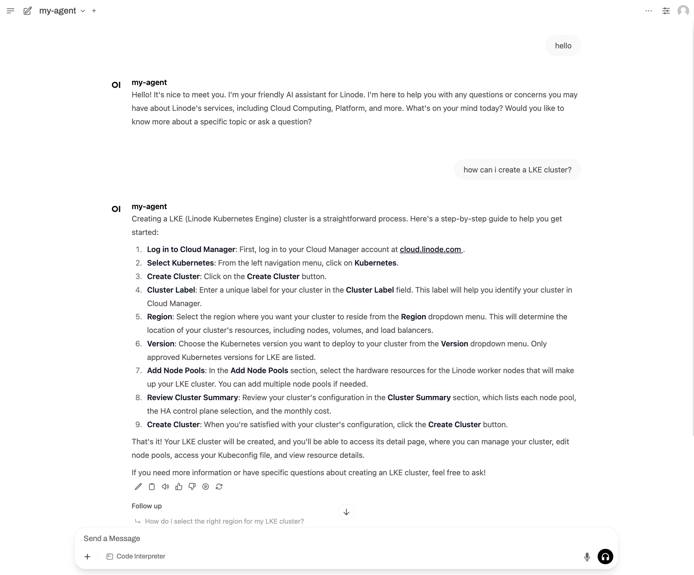
In the list of available Services, click on the URL of the my-agent-ui to navigate to the Open WebUI.
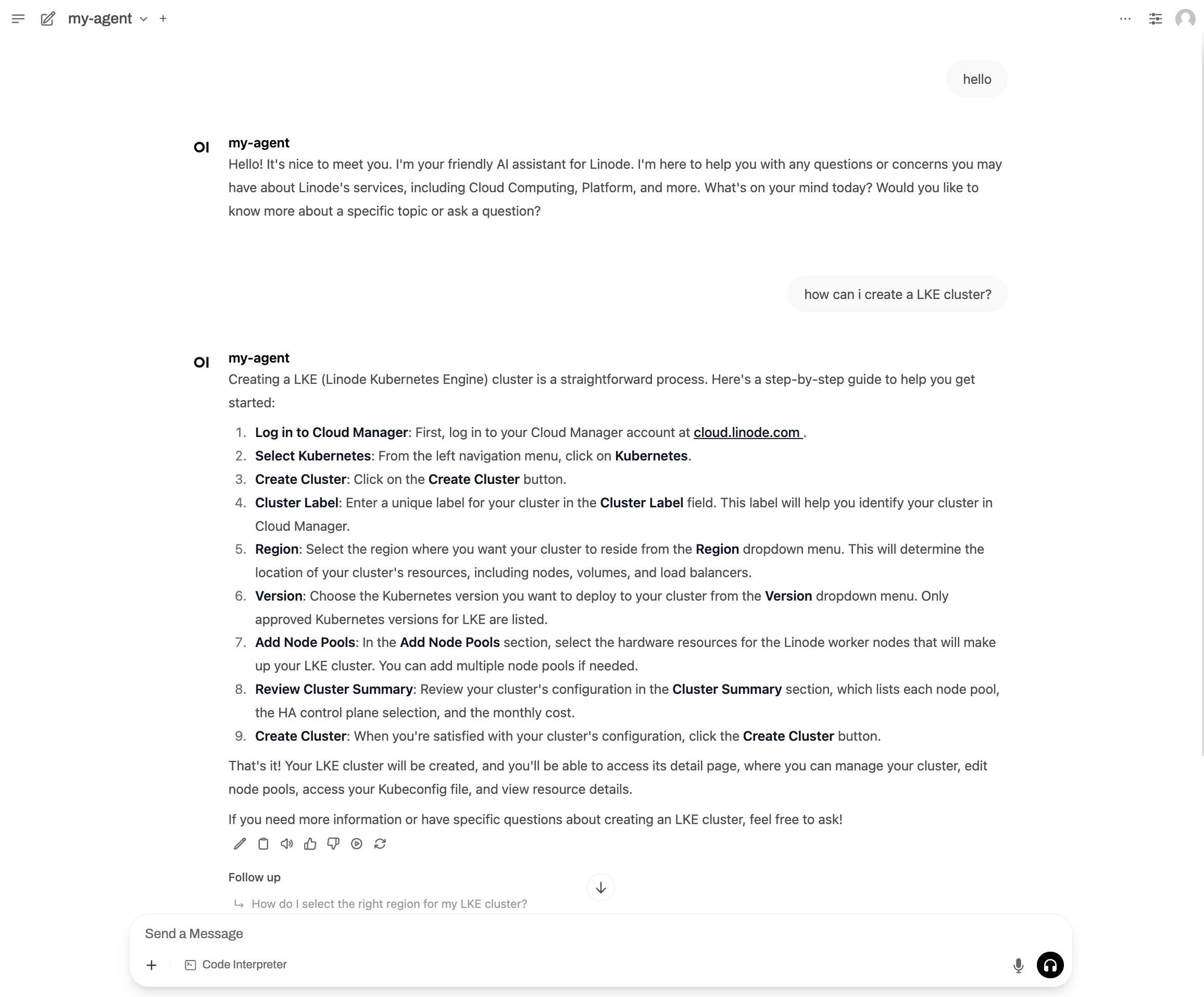
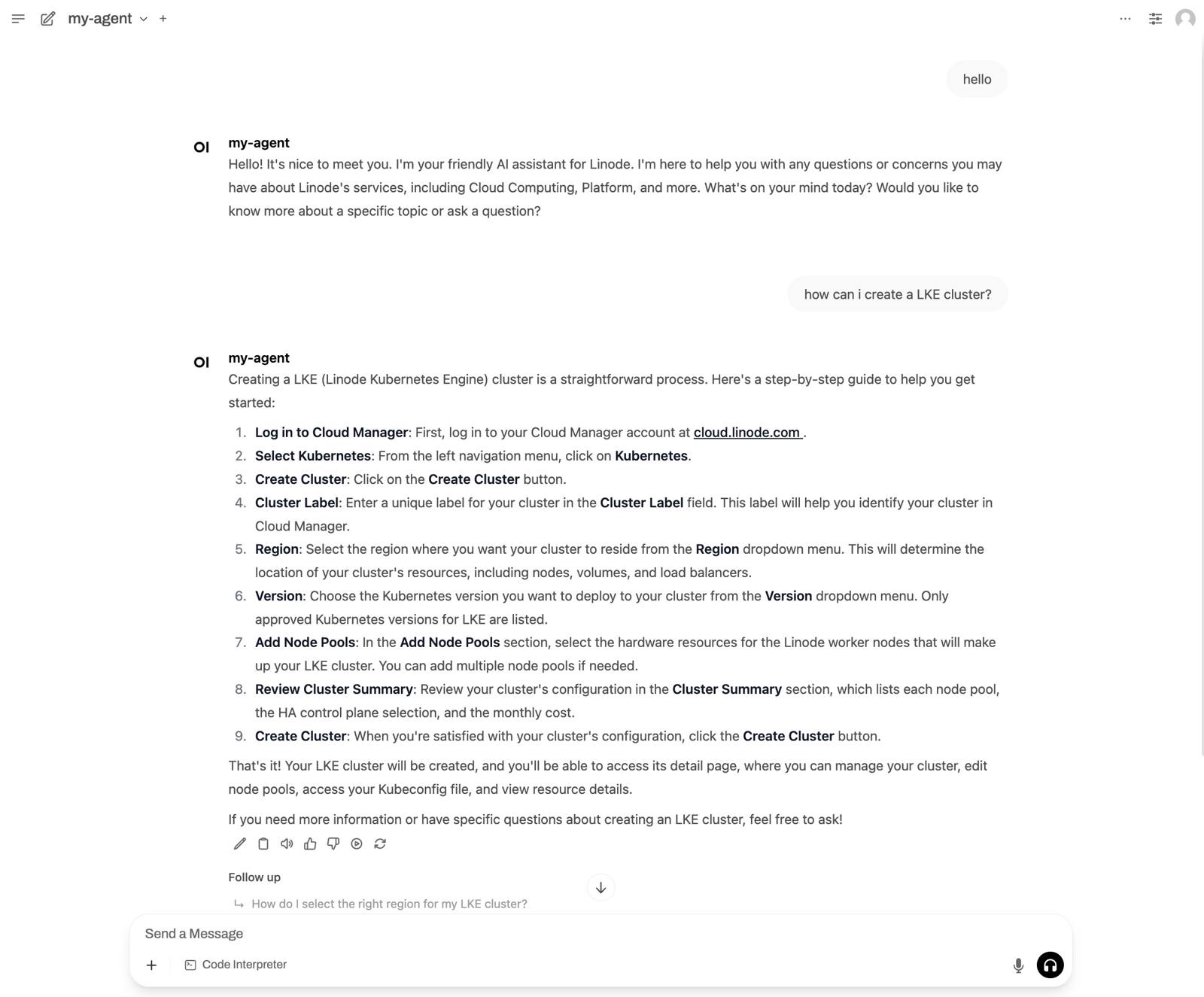
More Information
You may wish to consult the following resources for additional information on this topic. While these are provided in the hope that they will be useful, please note that we cannot vouch for the accuracy or timeliness of externally hosted materials.
This page was originally published on
